> ## Documentation Index
> Fetch the complete documentation index at: https://docs.kyos.bot/llms.txt
> Use this file to discover all available pages before exploring further.
# Command Aliases
Create customised commands, or shortened versions of an existing command.
## Overview
Command aliases allow you to create custom commands that invoke existing commands or completely make your own. You may find this useful for giving multiple roles through one command and such.
## Creating a new alias
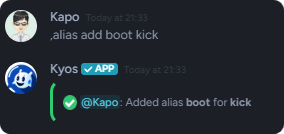
You may create an alias using the `alias add` command
```javascript Syntax theme={null}
,alias add (shortcut) (command)
```
```javascript Example theme={null}
,alias add boot kick
```
 ### Pre-defined arguments
Aliases support predefined arguments. If you want to pass user input as an argument, use `{}` placeholders.
The first argument is `{0}`, the second is `{1}`, and so on. It starts at `{0}`, not `{1}`
```javascript theme={null}
,ban @kk.apo trolling
```
* `{0}` would `@kk.apo` in this scenario
* `{1}` would be `trolling` in this scenario
To add an alias that uses pre-defined arguments, it would look something like this:
```javascript theme={null}
,alias add troll hardban {1} Being a troll
,hardban @kk.apo
```
With this, it would run the `hardban` command and give `Being a troll` as the reason everytime.
### Creating a command that grants staff roles
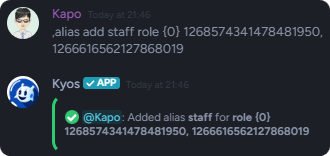
If you're interested in creating a command that grants image permissions to a user, you can use the following alias which invokes the `role` command with the predefined image role.
```javascript theme={null}
,alias add staff role {0} 1268574341478481950, 1266616562127868019
,staff @kk.apo
```
### Pre-defined arguments
Aliases support predefined arguments. If you want to pass user input as an argument, use `{}` placeholders.
The first argument is `{0}`, the second is `{1}`, and so on. It starts at `{0}`, not `{1}`
```javascript theme={null}
,ban @kk.apo trolling
```
* `{0}` would `@kk.apo` in this scenario
* `{1}` would be `trolling` in this scenario
To add an alias that uses pre-defined arguments, it would look something like this:
```javascript theme={null}
,alias add troll hardban {1} Being a troll
,hardban @kk.apo
```
With this, it would run the `hardban` command and give `Being a troll` as the reason everytime.
### Creating a command that grants staff roles
If you're interested in creating a command that grants image permissions to a user, you can use the following alias which invokes the `role` command with the predefined image role.
```javascript theme={null}
,alias add staff role {0} 1268574341478481950, 1266616562127868019
,staff @kk.apo
```
 ## Removing an alias
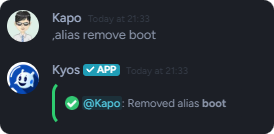
You can remove an alias using the `alias remove` command.
```javascript Syntax theme={null}
,alias remove (alias)
```
```javascript Example theme={null}
,alias remove boot
```
## Removing an alias
You can remove an alias using the `alias remove` command.
```javascript Syntax theme={null}
,alias remove (alias)
```
```javascript Example theme={null}
,alias remove boot
```
 ## Related commands
To view all aliases, use the `alias list` command
## Related commands
To view all aliases, use the `alias list` command